Introduction
First off, I’m not a Jia Ran fan. I just think she’s super cute (I didn’t even know it was Jia Ran at first). Yeah, this thing has quite a few bugs, and autostart doesn’t always trigger, but she’s just too adorable!
This extension also lets you change the background, but I’m not a big fan of that, so I skipped it.
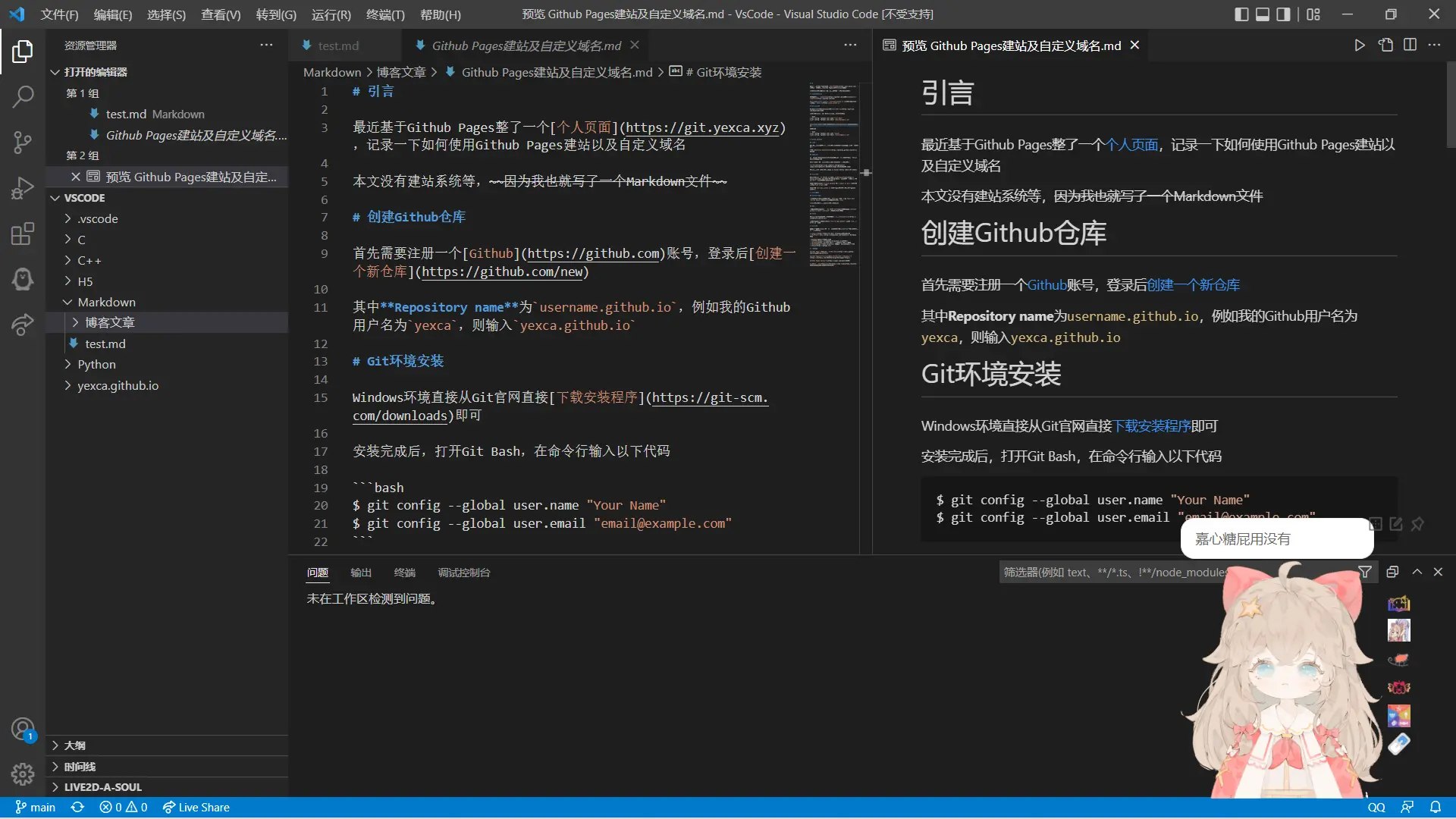
Here’s How It Looks
Installation
Open VS Code, then search for A-SOUL-live2d in Extensions and install it.
Extension link: A-SOUL-live2d - Visual Studio Marketplace
Honestly, you can just check the extension page for the installation process; no need to read my crappy article.
Basic Usage
Once installed, restart VS Code. Then, at the very bottom of the Explorer view, you’ll see LIVE2D-A-SOUL. Expand it (if it doesn’t expand, restart VS Code again).
Next, in Supplementary Settings, click Generate plugin dependency files. Restart VS Code, then click Start live2d.
Jia Ran will pop up in the bottom right corner! You can hover your mouse over her, drag the third icon in the top right to move her position, and click the first icon to change her size.
After adjusting her position and size, you can enable Autostart in Configuration Info, then click Save Current Configuration. Now, Jia Ran will appear every time you open VS Code~
Other Features
The following is copied from the plugin description:
Basic Operations
- Start/Stop live2d: Self-explanatory. Starts the live2d character, defaulting to the bottom right.
- Save Current Configuration: After adjusting live2d size, scale, and drag position, you can save the settings. They’ll be loaded automatically next time.
- Reset Default Position: Use this if the current position is abnormal and cannot be dragged. [Scaling also resets]
- Background Image
- Click to Switch: The button is the second icon to the right of the character.
- Save Background Image: Only works if a background image is currently present. Only one can be saved; clicking again will overwrite the old one.
- Load Background Image: Loads the saved background image.
- Timed Switching: Self-explanatory. Check if the switch button is spinning to determine if the timed function is enabled.
- Background Image Style Configuration
- Download Background Image
Configuration Info
- Autostart: Self-explanatory. When enabled, live2d will automatically start when VS Code launches.
- Positioning Dependency: The corner used for character positioning.
Supplementary Settings
- Plugin Dependency Files:
- Plugin dependency files are automatically generated when the plugin is first installed and launched.
- Generate: If live2d fails to start normally, try clicking this button to force regeneration and overwrite existing configuration.
- Remove: Before uninstalling this plugin, please try to perform this operation first. It can remove all modifications the plugin made to VS Code files.
- Plugin Dependency Files:
Character Features
- Gaze follows mouse [Drawback: Currently unable to follow across the entire page]
- Click Interaction
- A-SOUL Fan Navigation Website Entry
- Switch Background Image
- Switch Model
- Skating Rink
- Audio Test
- A-SOUL Fan-Created Content Website Entry
- Model Source
Regarding Warnings
Using it will pop up a Code corruption warning. The original author states:
This plugin runs by modifying VS Code’s JS files, so it will show the following prompt during first installation or VS Code upgrades. Please select [Don’t show again].
Audio Support
The current plugin only has a simple voice test; for now, you don’t need to consider this feature.
VS Code’s Electron version does not include ffmpeg , so you need to replace the built-in ffmpeg dynamic link library for normal playback (you’ll need to replace it after every VS Code update).
VS Code for Windows 1.31.0 - 1.35.1 didn’t require replacement; versions 1.36.0 and later don’t have this luxury.
VS Code for macOS 1.43+ crashes after replacement Solution
Uninstallation
First, Remove from Supplementary Settings, then uninstall the plugin from the Extensions view.