Introduction
I recently set up a personal page using GitHub Pages (it’s gone now), so here’s a quick guide on how to build a site and use a custom domain.
This post doesn’t cover complex site generators, since I basically just wrote a single Markdown file.
Create a GitHub Repository
First, sign up for a GitHub account. Once logged in, create a new repository .
The Repository name should be username.github.io. For example, if my GitHub username is yexca, I would enter yexca.github.io.
Git Environment Setup
On Windows, just download and run the installer from the official Git website.
After installation, open Git Bash and run the following commands:
| |
Replace Your Name with your name and [email protected] with your email.
For example:
| |
GitHub Desktop
Installation
If you’re already familiar with Git (though if you were, why are you reading this?), you can skip this step.
Go to the GitHub Desktop website to download and install it.
Clone the Repository
Open GitHub Desktop, log in, and clone the repository you just created to a local folder.
The app will show the repository interface with some quick actions on the right.
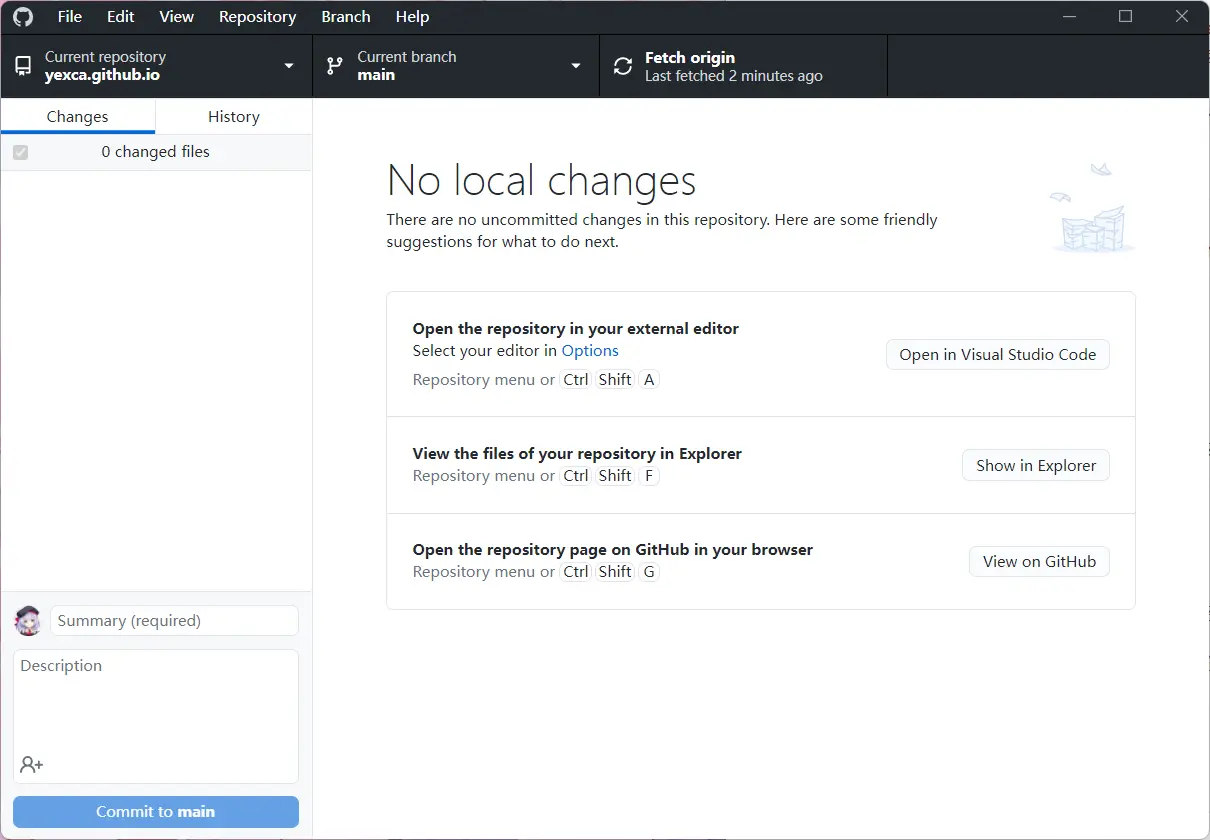
I use VS Code, so I’ll click “Open in Visual Studio Code”.
Build the Site
Create a README.md file and edit it using
Markdown
(shameless plug for my own Markdown notes).
Once edited and saved, go back to GitHub Desktop, click “Commit to main”, then click “Push origin”.
Now, visit username.github.io to see your site. (If it doesn’t show up immediately, give it a few minutes).
Custom Domain
GitHub Pages
Go to your repository settings, find “Pages” on the left, enter your custom domain under “Custom domain”, and click “Save”.
Note: You can also choose a Jekyll theme here.
DNS
In your domain’s DNS settings, add a CNAME record pointing your domain to username.github.io, where username is your GitHub username.
HTTPS
For some reason, I couldn’t get HTTPS working directly through GitHub, so I used Cloudflare .
Enable the proxy in DNS settings, then under “SSL/TLS” > “Edge Certificates”, toggle on “Always Use HTTPS”.
Other Site Builders
Since I didn’t need a full blog, I just used a simple file. If you want a real blog, check out these tools:
- Jekyll : Officially supported by GitHub.
- VuePress : Great for Markdown-centric sites.
- Gitbook: Good for documentation sites.
- LOFFER
- Gridea : A static blog writing client.
- Hexo : Fast, simple, and powerful blog framework.
- Hugo
References
GitHub Pages Quickstart - GitHub Docs