Written by Hiyoung
Original article: https://blog.hiyoung.xyz/2022/08/01/84a03702e5a9/
(Reference video: https://www.bilibili.com/video/BV1WY4y1H7d3?p=1 )
1. Basics
1.1 Linux File System Directory Structure
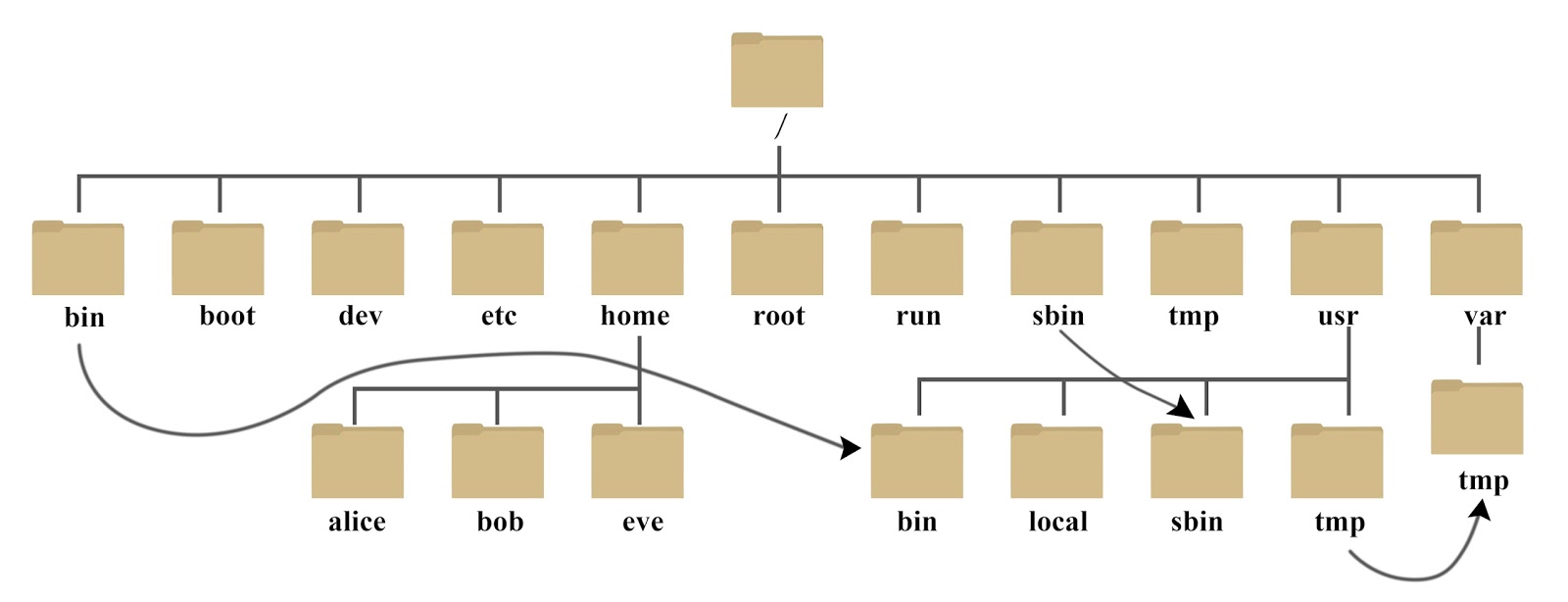
Small arrows in the diagram indicate that the file’s actual location is elsewhere.
- /bin: Short for Binaries. Contains the most frequently used commands.
- /boot:
Core files used for starting Linux, including bootloader files and kernel images. - /dev:
Short for Device. Contains external device files. In Linux, devices are accessed just like files. - /etc:
Short for Etcetera. Contains all system management configuration files and subdirectories. - /home:
User home directories. Every user has their own directory, usually named after their account (e.g., alice, bob, eve). - /lib:
Short for Library. Contains basic dynamic shared libraries, similar to DLL files in Windows. Almost all applications require these libraries. - /lost+found:
Usually empty. Contains file fragments recovered after an illegal system shutdown. - /media:
Linux automatically recognizes devices like USB drives and optical drives and mounts them here. - /mnt:
Used for temporary mounting of other file systems. You can mount an optical drive to /mnt/ to view its contents. - /opt:
Short for optional. Directory for installing extra software (e.g., an ORACLE database). Empty by default. - /proc:
Short for Processes. A virtual file system (pseudo file system) storing files representing the current kernel state. It resides in memory, not on the hard drive. You can access it for system info.
Example: Disable ping withecho 1 > /proc/sys/net/ipv4/icmp_echo_ignore_all. - /root:
The home directory for the system administrator (superuser). - /sbin:
Short for Superuser Binaries. Contains system management programs used by the admin. - /selinux:
Specific to Redhat/CentOS. SELinux is a security mechanism similar to a firewall but more complex. This directory stores SELinux-related files. - /srv:
Stores data required by services after they start. - /sys:
Introduced in the 2.6 kernel. It installs the sysfs file system, which integrates information from proc (processes), devfs (devices), and devpts (pseudo-terminals). It reflects the kernel device tree. - /tmp:
Short for temporary. Used for storing temporary files. - /usr:
Short for Unix Shared Resources. An important directory containing many user applications and files, similar to “Program Files” in Windows. - /usr/bin:
Applications used by system users. - /usr/sbin:
Advanced management programs and system daemons for the superuser. - /usr/src:
Default location for kernel source code. - /var:
Short for variable. Contains files that frequently change, such as various log files. - /run:
A temporary file system storing info since the system booted. Files are cleared on reboot. If/var/runexists, it should point here.
1.2 Basic File Attributes
1.2.1 Attributes
In Linux, the first character indicates whether the entry is a directory, file, or link.
- d: Directory
- –: File
- l: Link file
- b: Storage device interface (random access device)
- c: Serial port device, like a keyboard or mouse (one-time character device)
The following characters are grouped in threes, using rwx. r is read, w is write, and x is execute. If a permission is missing, it’s replaced by a dash –.
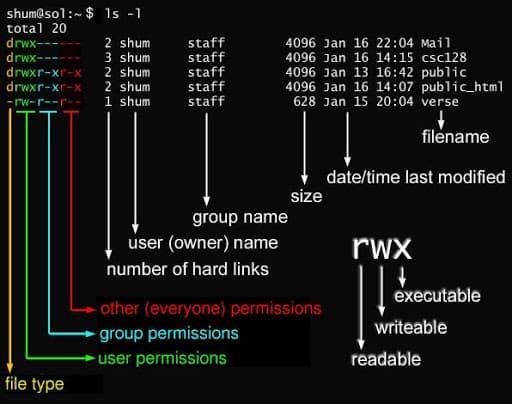
File attributes are defined by the first 10 characters (see below).
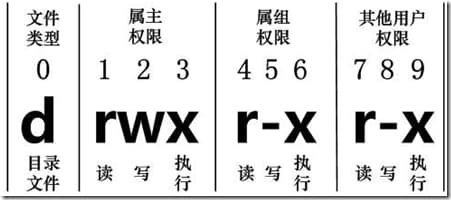
From left to right (0-9):
Bit 0 is the file type. Bits 1-3 are owner permissions. Bits 4-6 are group permissions. Bits 7-9 are permissions for others.
1, 4, 7 represent read (r). 2, 5, 8 represent write (w). 3, 6, 9 represent execute (x).
1.2.2 Linux File Owner and Group
1. chgrp: Change group
Syntax:
| |
Options:
- -R: Recursive change. Apply to all files and subdirectories.
2. chown: Change owner (and group)
Syntax:
| |
Example: Change install.log owner to bin in the home directory (~):
| |
Change it back to root:root:
| |
3. chmod: Change permissions
Two methods: Numeric and Symbolic.
There are nine basic permissions: owner/group/others, each with read/write/execute.
Numeric values:
- r: 4
- w: 2
- x: 1
Sum the values for each identity. For example, -rwxrwx—:
- owner = rwx = 4+2+1 = 7
- group = rwx = 4+2+1 = 7
- others = — = 0+0+0 = 0
Total: 770.
Syntax:
| |
Example: Set .bashrc to full permissions:
| |
For -rwxr-xr–, the score is [4+2+1][4+0+1][4+0+0]=754.
4. Symbolic permission changes
Use u (user), g (group), o (others), and a (all).
Set permissions to -rwxr-xr–:
| |
Remove execute permission for everyone:
| |
1.3 vim Text Editing
1.3.1 Three Vim Modes
Vim has three main modes: Command mode, Insert mode, and Last line mode (often referred to as general mode in some contexts).
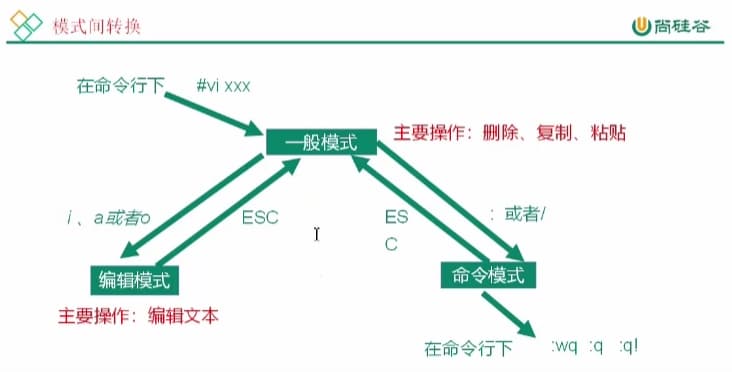
1.3.2 vim Shortcuts
Refer to: https://www.runoob.com/linux/linux-vim.html
1.4 Network Configuration
1.4.1 VMware Network Modes
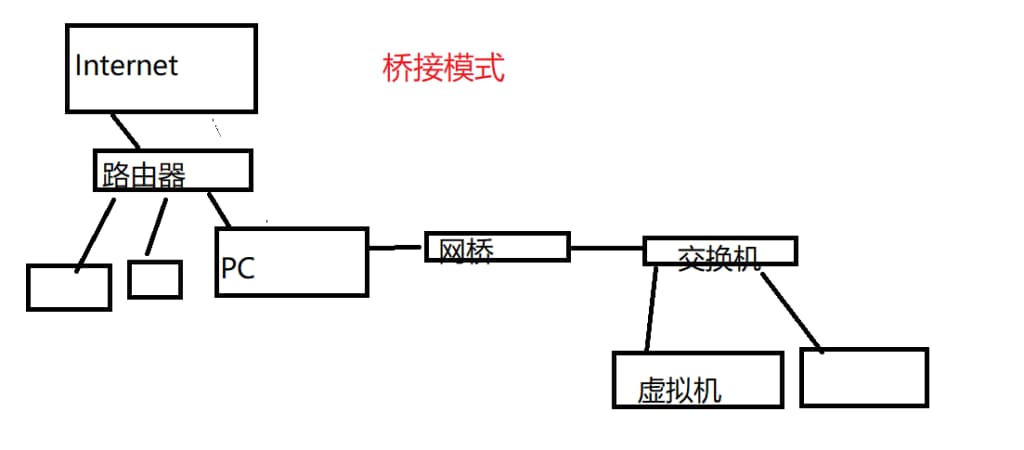
Bridged Mode: VM connects directly to the external network (visible to outside). The host acts as a bridge. The VM gets its own IP from the router.
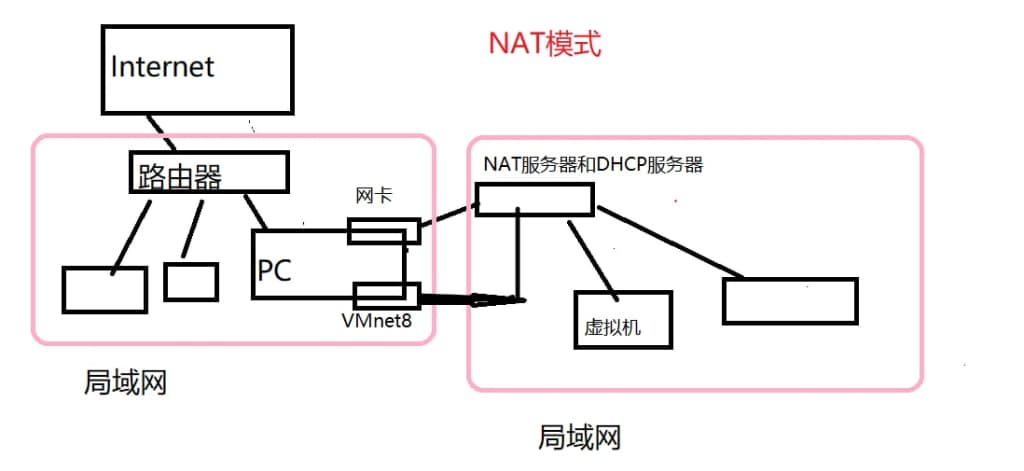
NAT Mode: Host and VM create a private network. NAT translates the VM’s IP (VM is invisible to outside). Since the host and VM are on different subnets, a virtual network card (VMnet8) connects the host to the VM’s LAN.
Host-only Mode: VM communicates only with the host. No Internet connection.
1.4.2 Configuring Static IP
Refer to: Setting Static IP in VM (CentOS example)
1.4.3 Configuring Hostname
| |
| |
1.5 System Management
1.5.1 service Management
An executing program or command is a “process.”
A process that remains in memory after starting is a “service.”
| |