Additionally, I wrote a model modification tutorial, which you can check out at: https://vrchat.yexca.net/
Introduction
Recently, a friend told me that the piano in VRChat can play automatically. So I learned how to do it and wrote this article to document the process.
Note: It seems to only work in PC mode. Of course, you can also try casting your desktop in VR (doge).
Without Using MIDI Files
1. Preparation
To achieve automatic piano playing, you need to install two software programs and one plugin:
1) loopMIDI
This software can be obtained directly from its official website: loopMIDI-Tobias Erichsen (tobias-erichsen.de)
Direct link: loopMIDISetup_1_0_16_27.zip (may become invalid due to version updates)
2) Jazz-Plugin
Please keep the default installation path during installation, otherwise it may not function properly.
Windows: Click here to download (Official Link) (If the official link fails to download, you can also Click here to download )
Mac OS X: Click here to download
Linux version: Click here to download
3) Browser Plugin: Jazz-MIDI
The Jazz-MIDI Chrome extension originally linked cannot currently be installed directly on newer versions of Chrome. You can build it yourself from the author’s open-source repository .
Building from Source (Windows)
Install Git and Visual Studio, making sure the “Desktop development with C++” workload is installed.
Clone the repository:
1
2
git clone https://github.com/jazz-soft/jazz-midi.git cd jazz-midiOpen
x64 Native Tools Command Prompt for VS 2022from the Start Menu, navigate to thenativedirectory in the repository, and build (replace the path with your actual repository location):1 2cd /d C:\path\to\jazz-midi\native nmake /f Makefile.WindowsAfter the build completes, you will get
native\jazz-midi.exeandnative\manifest.exe. The Chrome extension source code is located in thefirefox\jazz-mididirectory, and the project does not require any additional JavaScript bundling steps.Open
chrome://extensionsin the Chrome address bar, enable “Developer mode”, click “Load unpacked”, and select thefirefox\jazz-mididirectory from the repository.If Jazz-Plugin was previously installed on your computer, the Native Messaging host is usually already registered and can be tested directly on MidiShow. You only need to proceed with the following configuration if the extension cannot connect to the local MIDI host or if MidiShow does not display any MIDI devices.
If the Extension Does Not Work Properly
Run the following command in the
nativedirectory to generate the Native Messaging host configuration (replace the path with your actual location):1manifest.exe com.jazz_soft.jazz_midi "C:\path\to\jazz-midi\native\jazz-midi.exe"Open the generated
com.jazz_soft.jazz_midi.chrome.jsonand change the extension ID inallowed_originsto the local extension ID displayed inchrome://extensionsin Chrome.Register the configuration to the current user’s Chrome:
1reg add "HKCU\Software\Google\Chrome\NativeMessagingHosts\com.jazz_soft.jazz_midi" /ve /t REG_SZ /d "C:\path\to\jazz-midi\native\com.jazz_soft.jazz_midi.chrome.json" /fRestart Chrome and test again.
Let an Agent Help with the Build
If you are unfamiliar with Git, Visual Studio, or the command line, you can send the following prompt to an Agent that can operate your local machine:
| |
Legacy Chrome Installation Method (For users who can still use older Jazz-MIDI versions)
Older versions of Chrome, Opera, or other Chromium browsers can try using the following links:
- Jazz-MIDI in the Chrome Web Store
- Chrome before 73: Jazz-MIDI-crx2.crx
- Chrome 73 and later: Jazz-MIDI-crx3.crx
After downloading the CRX file, open chrome://extensions, enable “Developer mode”, and drag the CRX file onto the extensions page. The above links and installation method are for reference in legacy browsers only; if your current Chrome cannot install it or the extension doesn’t work, please use the source build method above.
2. Steps
1) Open loopMIDI and create a new project
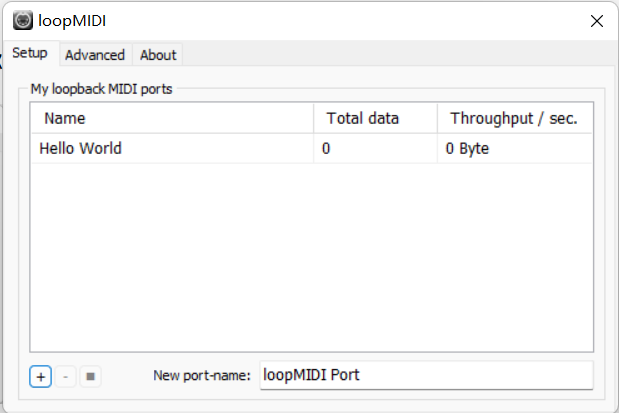
To create a new project, enter a name in New port-name at the bottom right, then click the + (plus sign) at the bottom left.
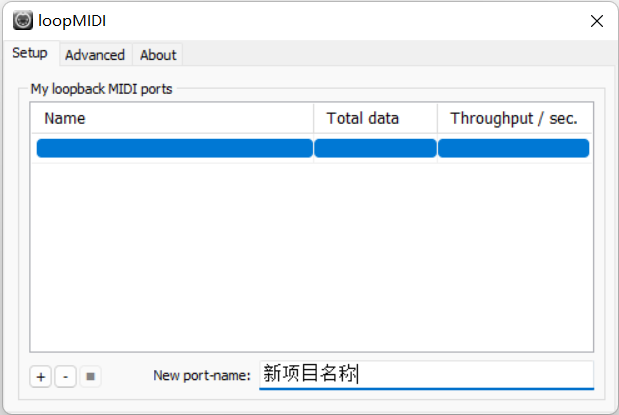
Once completed, the project will appear at the top. Here, Hello World is used as the project name.
2) Start Playing
<1> Find the song to play
First, open the website MidiShow - Leading MIDI Music Exchange & Download Website
After registering and logging in, search for the song you want to play.
<2> Configure playback settings
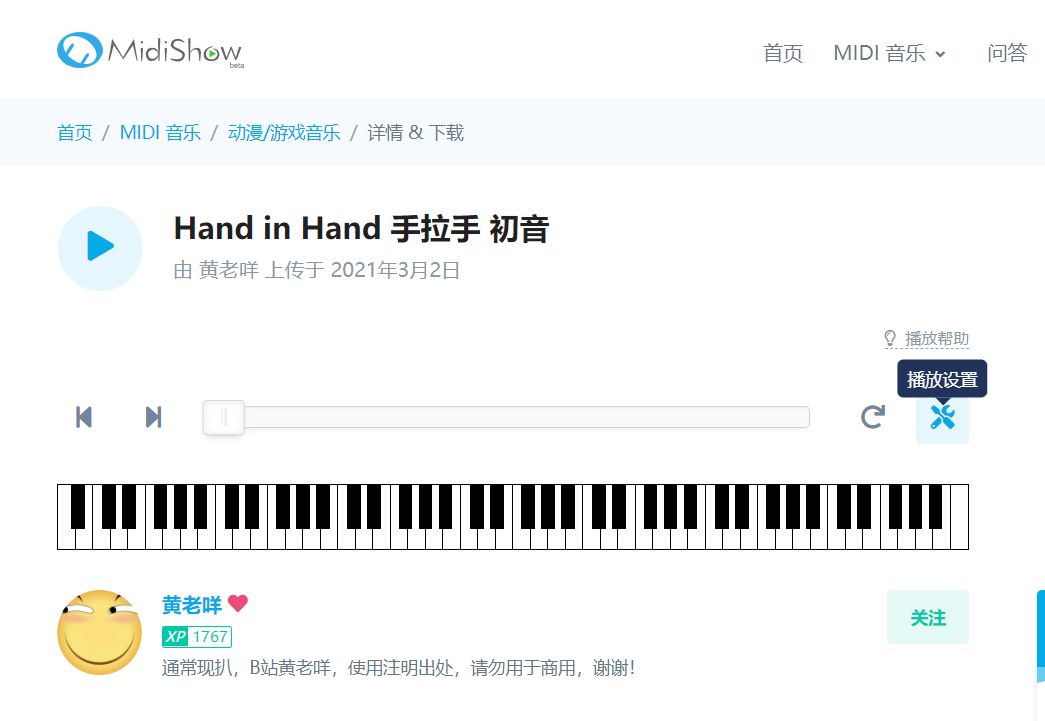
As shown in the image, taking Hand in Hand as an example, click the 播放设置 (Playback Settings) button.
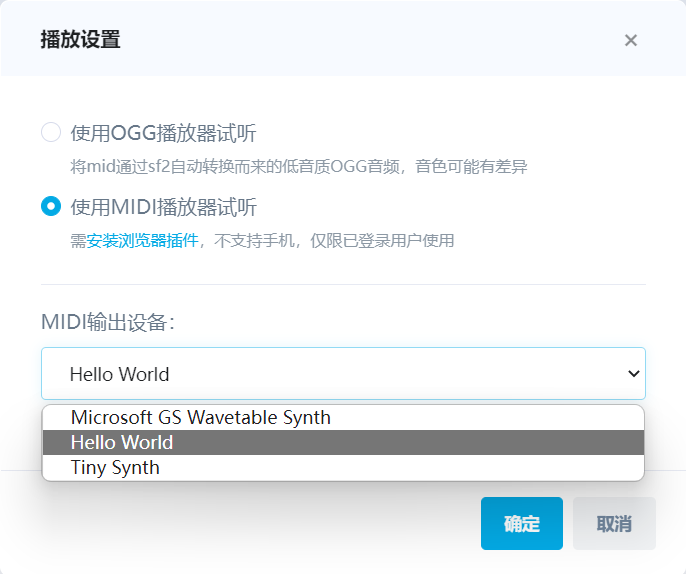
Settings are as shown. For MIDI 输出设备 (MIDI Output Device), select the project just created with loopMIDI, which is Hello World here.
<3> Start playing
At this point, head over to the piano in VRChat’s Chinese Bar, select a stool to sit on, and then click play on the webpage.
When Using MIDI Files
First, please make sure the MIDI file is a piano sheet score. Multi-track files may cause confusion; please edit them yourself if necessary.
1. Preparation
1) loopMIDI
This software can be obtained directly from its official website: loopMIDI-Tobias Erichsen (tobias-erichsen.de)
Direct link: loopMIDISetup_1_0_16_27.zip (may become invalid due to version updates)
2) MidiPiano
I obtained this software from a software download website (the first Google search result).
Website link: MidiPiano – Download (softonic.com)
2. Steps
1) Create a new project in loopMIDI
To create a new project, enter a name under “New port-name” at the bottom right, then click the “+” (plus sign) at the bottom left.
Once completed, the project will appear at the top. Here, “Hello World” is used as the project name.
2) Open MidiPiano and configure settings
Click the playlist where you can drag and drop files directly. Click Options, and set the output device to the project created in loopMIDI just now, which is Hello World here.
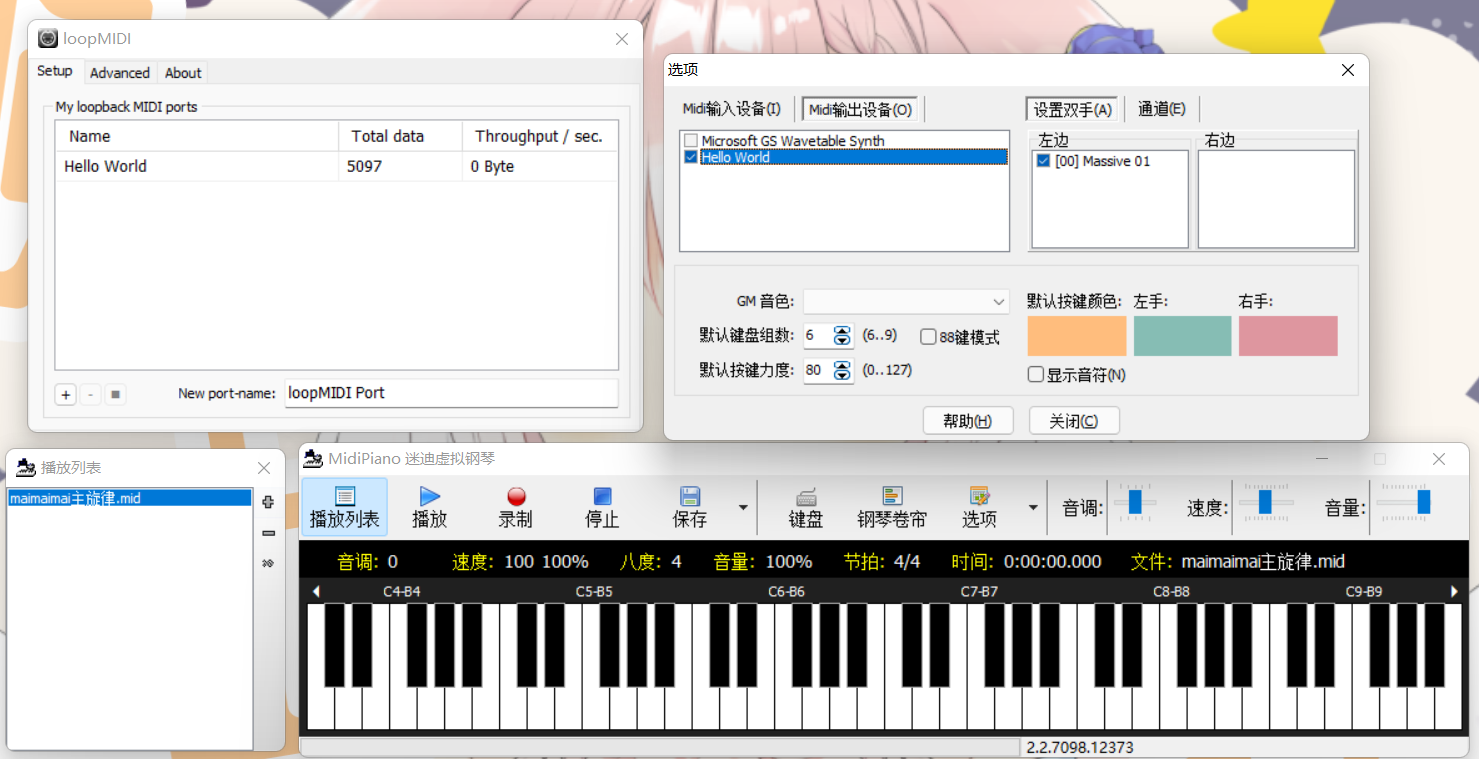
If a popup appears saying “MIDI Input and Output cannot be the same, it will crash!”
Please click Midi Input Device in Options, uncheck the project just created in loopMIDI, and then switch to Midi Output Device to enable it.
3) Start playing
Now go to the piano in the Chinese Bar, sit on a stool, select the song you want to play in the Playlist, and click Play.
References
[VRChat] How to Automatically Play Piano in Chinese Bar - Bilibili